> ## Documentation Index
> Fetch the complete documentation index at: https://luarmor.mintlify.site/llms.txt
> Use this file to discover all available pages before exploring further.
# Quickstart
> Get your script ready in under 10 minutes
## Creating your account
Luarmor works with an `invite code` system. This means that you can only create an account if you have an invite code. You can also buy invite codes for other people to use!
Invite codes can be purchased from the main site [here](https://luarmor.net/#prices).
Invite codes can also be used to extend your membership by an extra 30 days by redeeming an invite code on your [profile page](https://luarmor.net/profile).
Go to the [registration page](https://luarmor.net/signup).
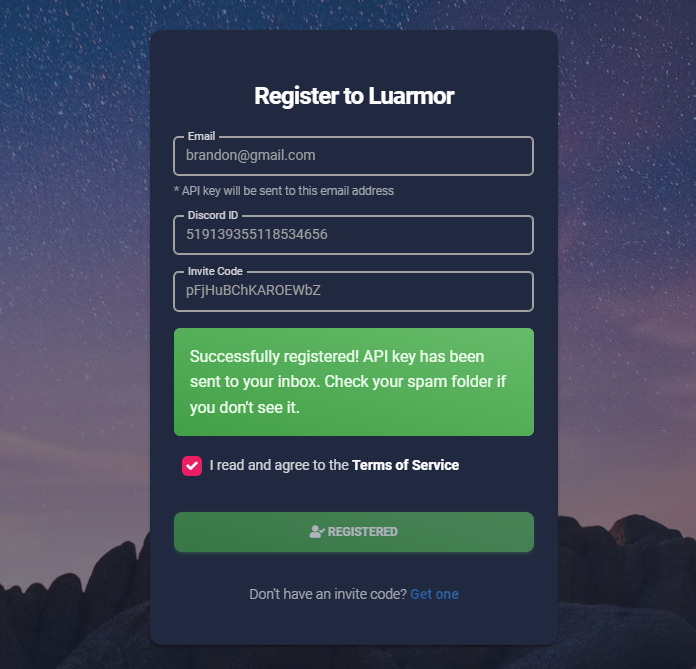
Enter your invite code in the `Invite Code` field.
Fill in the rest of the form and click `Register`.
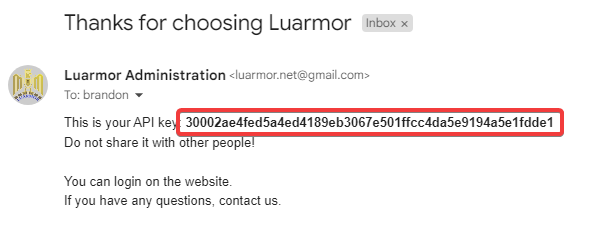
 You will receive your login credential (`API Key`) in your emails
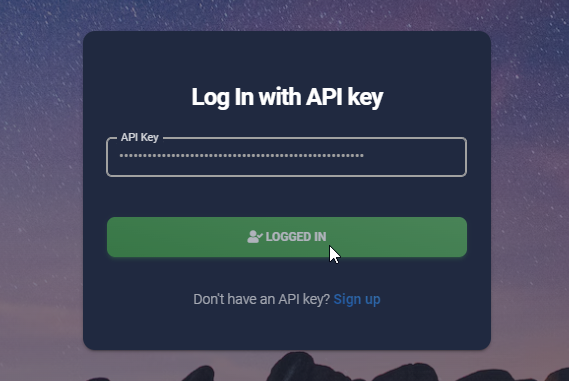
 [Log in](https://luarmor.net/login) to your account and access the dashboard with your API Key.
 ## Creating a project
Luarmor has a feature called **project folders**. They can contain multiple scripts, allowing you to have a **script hub** with multiple games in it.
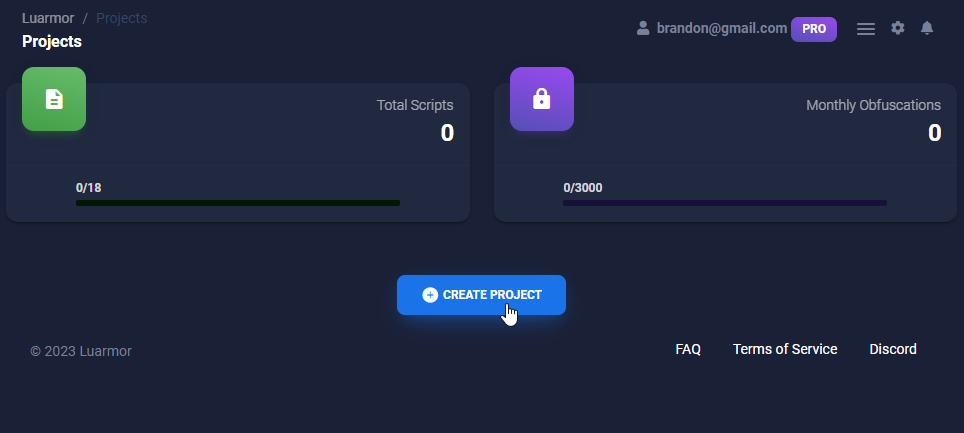
A project can contain multiple scripts. You can create a project [here](https://luarmor.net/projects) by clicking `Create Project`.
## Creating a project
Luarmor has a feature called **project folders**. They can contain multiple scripts, allowing you to have a **script hub** with multiple games in it.
A project can contain multiple scripts. You can create a project [here](https://luarmor.net/projects) by clicking `Create Project`.
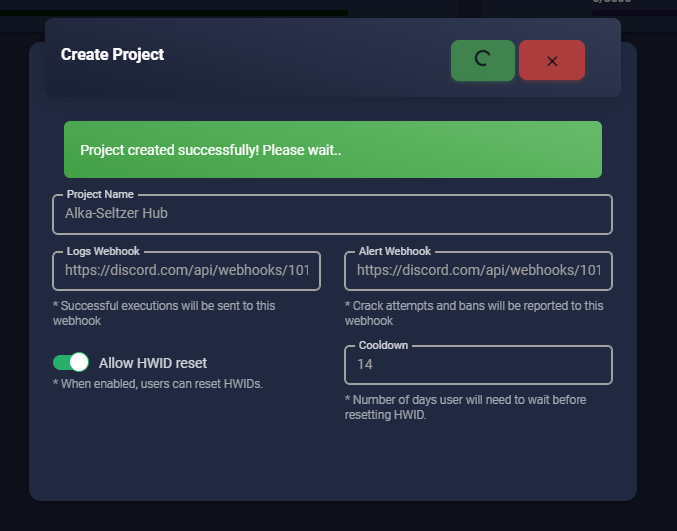
 Enter all of the details for the project including the name, webhooks, and configuring HWID resets.
 ## Uploading your script
All scripts live inside a project, to learn how to create one, please refer to the previous section.
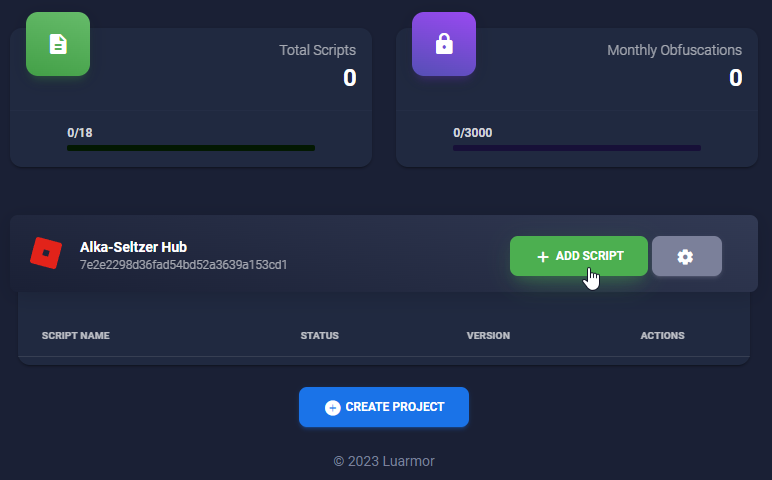
To start uploading a script, under the project you created, click `New Script`.
## Uploading your script
All scripts live inside a project, to learn how to create one, please refer to the previous section.
To start uploading a script, under the project you created, click `New Script`.
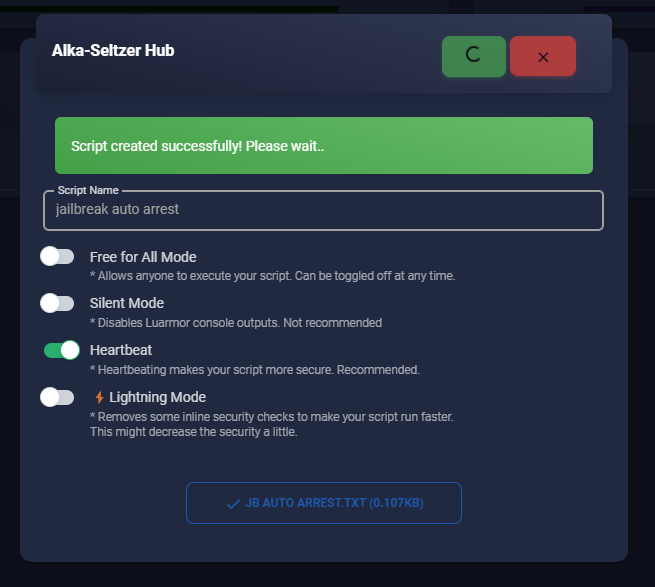
 After you click `New Script`, you will be prompted to enter the script details. Fill in all of the details, **upload your script**, and press the green tick in the top right.
Your screen may be too small and you may not be able to see the `Upload File` button. If this is the case, try to zoom out or use another computer / monitor.
After you click `New Script`, you will be prompted to enter the script details. Fill in all of the details, **upload your script**, and press the green tick in the top right.
Your screen may be too small and you may not be able to see the `Upload File` button. If this is the case, try to zoom out or use another computer / monitor.
 ## Distributing your script
After you have uploaded your script, you can now download the loader script and start whitelisting users.
Please use the Luarmor loadstring to ensure your script is always up to date. Uploading the contents of the loadstring and using that instead will cause an error!
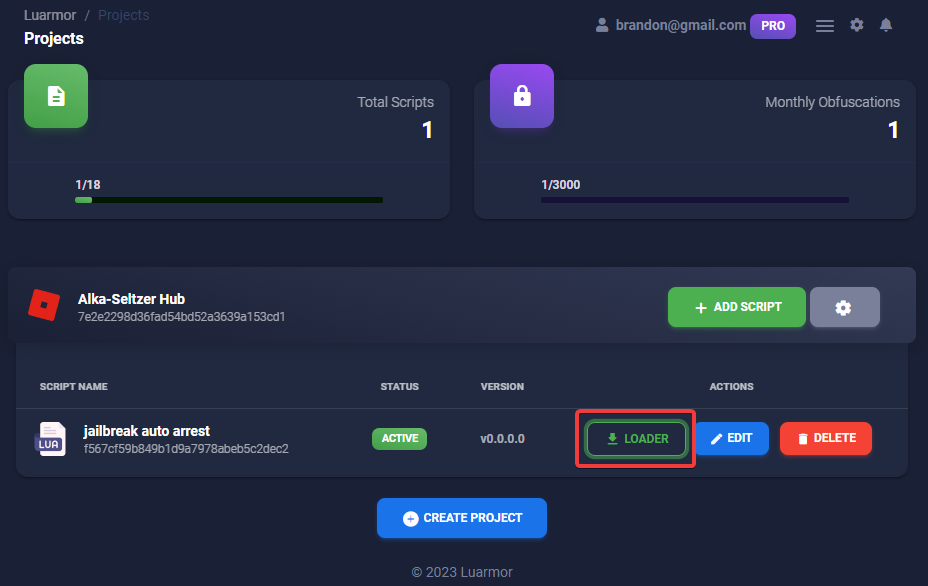
Download the loader script by clicking the `Loader` button.
## Distributing your script
After you have uploaded your script, you can now download the loader script and start whitelisting users.
Please use the Luarmor loadstring to ensure your script is always up to date. Uploading the contents of the loadstring and using that instead will cause an error!
Download the loader script by clicking the `Loader` button.
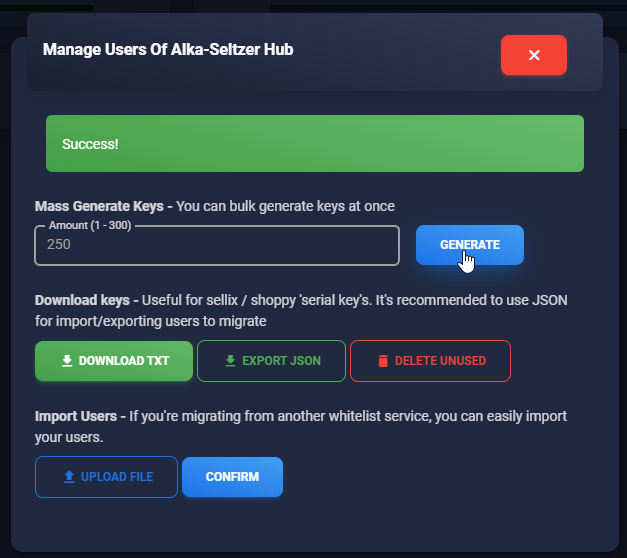
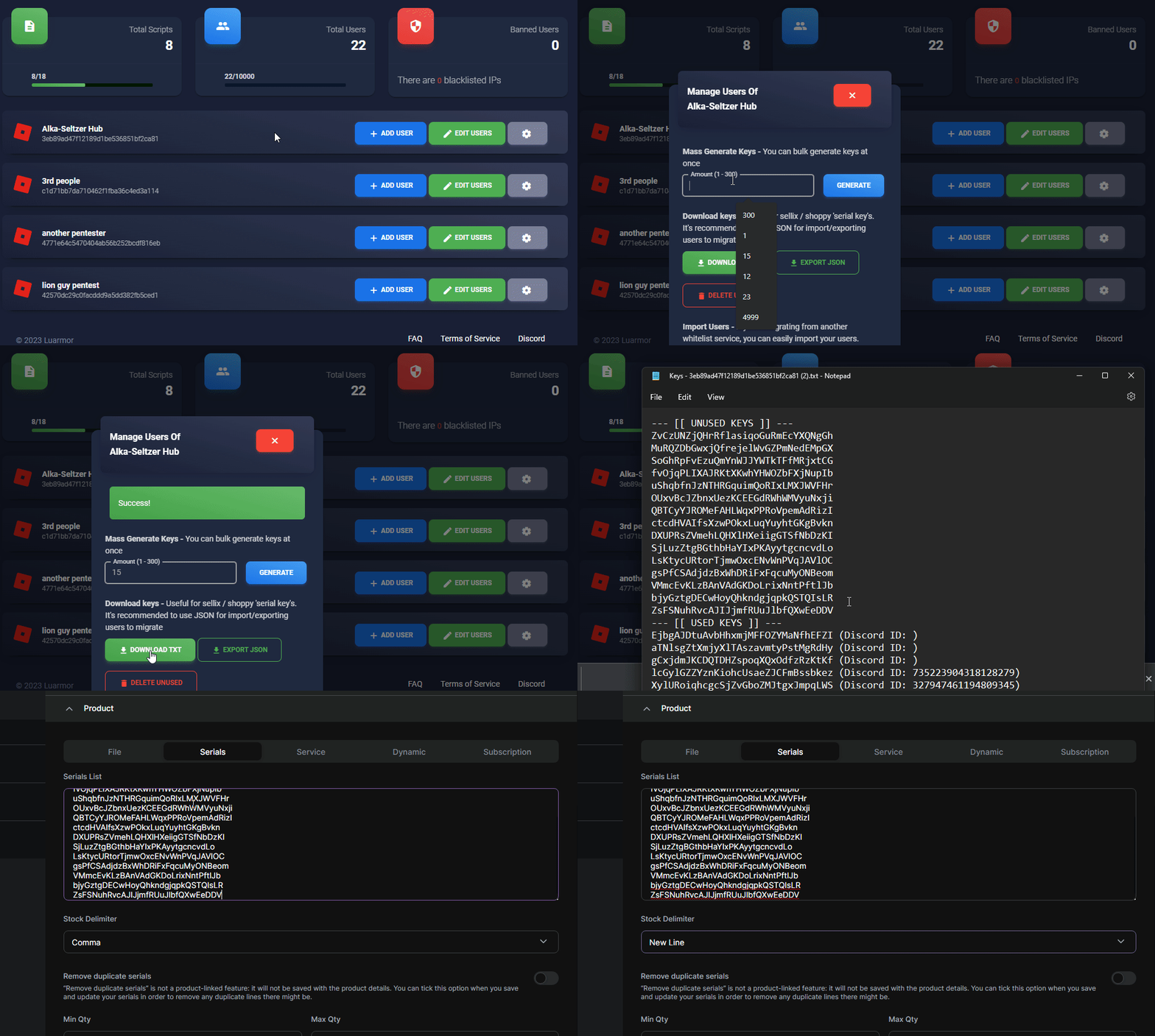
 Generate an empty key on the [user](https://luarmor.net/users) area and give it to the user. Alternatively, you can mass-generate keys and put them to your [Sellix](https://sellix.io) / [Shoppy](https://shoppy.gg) as `serials` for automated purchases.
 ## Mass import / export users
To import all your users, it's recommended to use the JSON format when exporting.
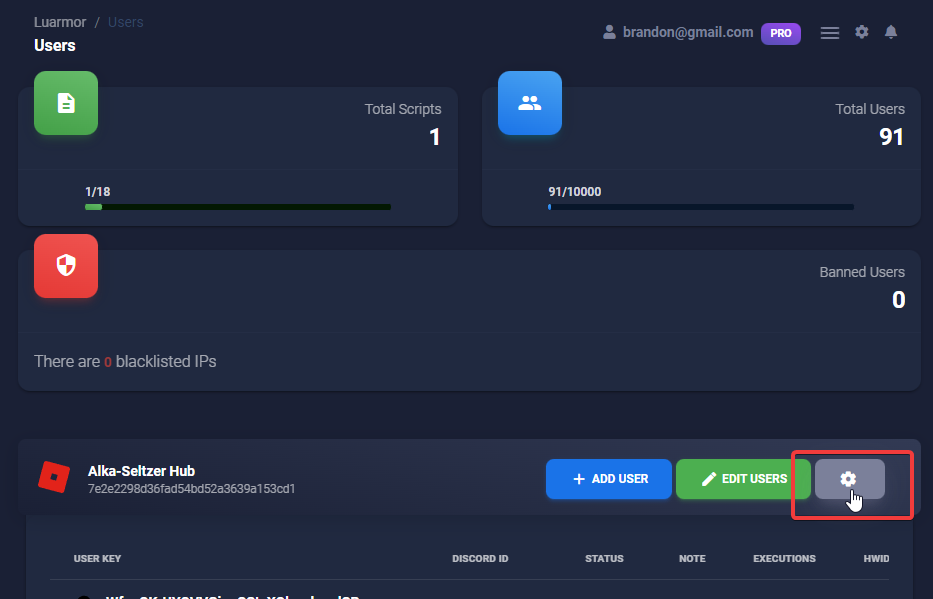
Go to your project settings by clicking the gear icon next to the project in the [user dashboard](https://luarmor.net/users)
## Mass import / export users
To import all your users, it's recommended to use the JSON format when exporting.
Go to your project settings by clicking the gear icon next to the project in the [user dashboard](https://luarmor.net/users)
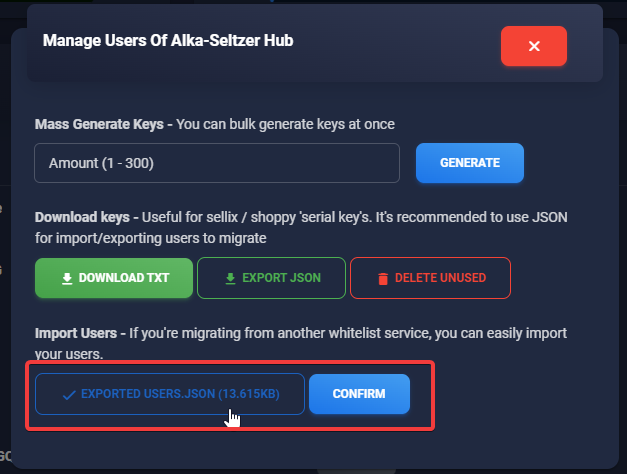
 Press `Import JSON` and paste the JSON file you exported earlier.
 You can export all your users to either a TXT file or JSON file. For images, see the import section.
Go to your project settings by clicking the gear icon next to the project in the [user dashboard](https://luarmor.net/users)
Press either `Download TXT` or `Export JSON`. To import later, it's recommended to use `Export JSON`.
You can export all your users to either a TXT file or JSON file. For images, see the import section.
Go to your project settings by clicking the gear icon next to the project in the [user dashboard](https://luarmor.net/users)
Press either `Download TXT` or `Export JSON`. To import later, it's recommended to use `Export JSON`.