> ## Documentation Index
> Fetch the complete documentation index at: https://luarmor.mintlify.site/llms.txt
> Use this file to discover all available pages before exploring further.
# Discord Bot
> A Discord bot that manages your script
## Introduction
Luarmor also has a Discord bot ready for you to invite to your server. The bot allows you to manage your script, whitelist users, and more. It also allows users to manage their key.
## Inviting the bot
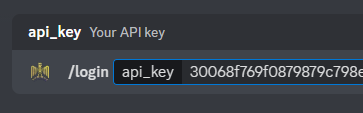
After inviting the bot, you must run `/login [API KEY]` within the first 15 minutes, otherwise bot will automatically leave the server.
 You can view all of the discord bot invite links [here](https://luarmor.net/bot), each one is identical. The reason for having many bots is because Discord limits the amount of servers a bot can be in.
## Setting up permissions
People with manager role can run basic management command like [/whitelist](#whitelist) and [/force-resethwid](#force-resethwid). This role will be used in the next section.
This is optional.
This role is automatically assigned to users when:
* a manager whitelists them
* user redeems a key via the [panel](#create-a-panel)
* user gets their role via the [panel](#create-a-panel)
It gives them access to the script via the [panel](#create-a-panel) and the ability to reset their HWID. This role may be used in the next section.
## Advanced permissions
You can make more advanced permissions and roles that only allow specific people to use specific commands. This is done built-in through Discord's permission system. You can go to `Server Settings > Integrations > Luarmor` and set the permissions for each command there.
## Create a panel
You can only have one panel / one loader script per server.
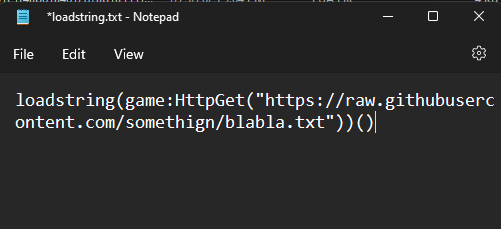
Do not make your loader script too long. Discord has a limit on the size of files that can be sent. An alternative is to redirect your users to a `#script` channel where you can upload the entire script manually and make the `loader_script` point to that channel.
This is the script users will receive when they press "Get Script" on the panel, which will be configured in the next step.
You can view all of the discord bot invite links [here](https://luarmor.net/bot), each one is identical. The reason for having many bots is because Discord limits the amount of servers a bot can be in.
## Setting up permissions
People with manager role can run basic management command like [/whitelist](#whitelist) and [/force-resethwid](#force-resethwid). This role will be used in the next section.
This is optional.
This role is automatically assigned to users when:
* a manager whitelists them
* user redeems a key via the [panel](#create-a-panel)
* user gets their role via the [panel](#create-a-panel)
It gives them access to the script via the [panel](#create-a-panel) and the ability to reset their HWID. This role may be used in the next section.
## Advanced permissions
You can make more advanced permissions and roles that only allow specific people to use specific commands. This is done built-in through Discord's permission system. You can go to `Server Settings > Integrations > Luarmor` and set the permissions for each command there.
## Create a panel
You can only have one panel / one loader script per server.
Do not make your loader script too long. Discord has a limit on the size of files that can be sent. An alternative is to redirect your users to a `#script` channel where you can upload the entire script manually and make the `loader_script` point to that channel.
This is the script users will receive when they press "Get Script" on the panel, which will be configured in the next step.
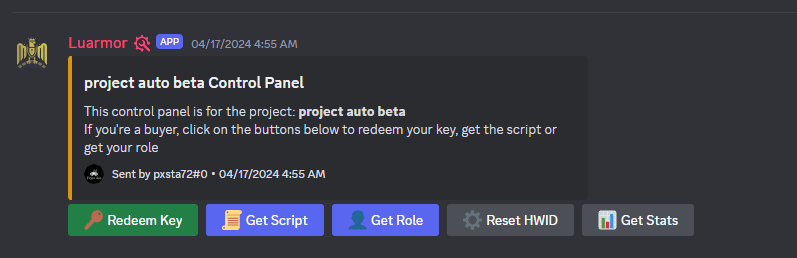
 The panel creation is all handled through the `/setpanel` command which creates a new panel in the current channel. It must be given a `loader_script` and a `manager_role`, but optionally can also be given a `buyer_role`.
 ## Whitelisting users
If `days` is not specified, then the user will be whitelisted indefinitely.
Users can be whitelisted and unwhitelisted through the `/whitelist` and `/unwhitelist` commands by [managers](#manager-role).
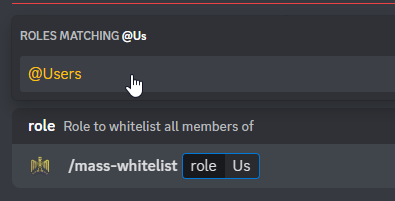
If you already have users with a specific role, you can easily mass whitelist every single one of them with one command. This is done through the `/mass-whitelist` command, which asks for the `role` and, optionally, the number of `days`.
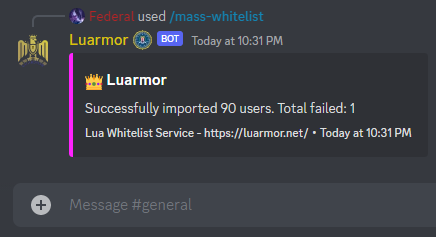
`Total failed` means their discord IDs are already registered, so in order to avoid duplicated entries, it will skip them.
## Whitelisting users
If `days` is not specified, then the user will be whitelisted indefinitely.
Users can be whitelisted and unwhitelisted through the `/whitelist` and `/unwhitelist` commands by [managers](#manager-role).
If you already have users with a specific role, you can easily mass whitelist every single one of them with one command. This is done through the `/mass-whitelist` command, which asks for the `role` and, optionally, the number of `days`.
`Total failed` means their discord IDs are already registered, so in order to avoid duplicated entries, it will skip them.
 ## Luarmor logs
You can setup logs via [Discord webhooks](https://support.discord.com/hc/en-us/articles/228383668-Intro-to-Webhooks). This is done through the `/setlogs` command. This will log all Discord Luarmor command and button usage.
## Manager commands
All of the following commands can only be ran by people with the [manager role](#manager-role).
If `days` is not provided, then the user will be blacklisted indefinitely.
This command blacklists a specific Discord user from the project. You can optionally give a reason to show to the user and the amount of days.
This command add a specified amount of days to everyone's keys in the project. Example usage of this command may be when your script was patched and you want to compensate your users.
This ignores any cooldowns you have set.
This command resets the HWID of a specific user.
This has been covered [here](#inviting-the-bot).
This command logs out the bot from the server.
This has been covered [here](#whitelisting-users).
This has been covered [here](#luarmor-logs).
This has been covered [here](#whitelisting-users).
This has been covered [here](#whitelisting-users).
## Luarmor logs
You can setup logs via [Discord webhooks](https://support.discord.com/hc/en-us/articles/228383668-Intro-to-Webhooks). This is done through the `/setlogs` command. This will log all Discord Luarmor command and button usage.
## Manager commands
All of the following commands can only be ran by people with the [manager role](#manager-role).
If `days` is not provided, then the user will be blacklisted indefinitely.
This command blacklists a specific Discord user from the project. You can optionally give a reason to show to the user and the amount of days.
This command add a specified amount of days to everyone's keys in the project. Example usage of this command may be when your script was patched and you want to compensate your users.
This ignores any cooldowns you have set.
This command resets the HWID of a specific user.
This has been covered [here](#inviting-the-bot).
This command logs out the bot from the server.
This has been covered [here](#whitelisting-users).
This has been covered [here](#luarmor-logs).
This has been covered [here](#whitelisting-users).
This has been covered [here](#whitelisting-users).